How To Build an Overlay with Overlay Builder
Overlay Builder lets you combine several SheevChat widgets into one OBS Browser Source.
Create an Overlay
- Open Settings → Overlays.
- Click Open Overlay Builder.
- Click New Overlay, give it a clear name, and create it.
- Set the canvas width and height to the resolution you will use in OBS.
1920 × 1080is a common starting point.
Each saved overlay has its own URL, so you can build separate layouts for Gameplay, Starting Soon, BRB, and other scenes.
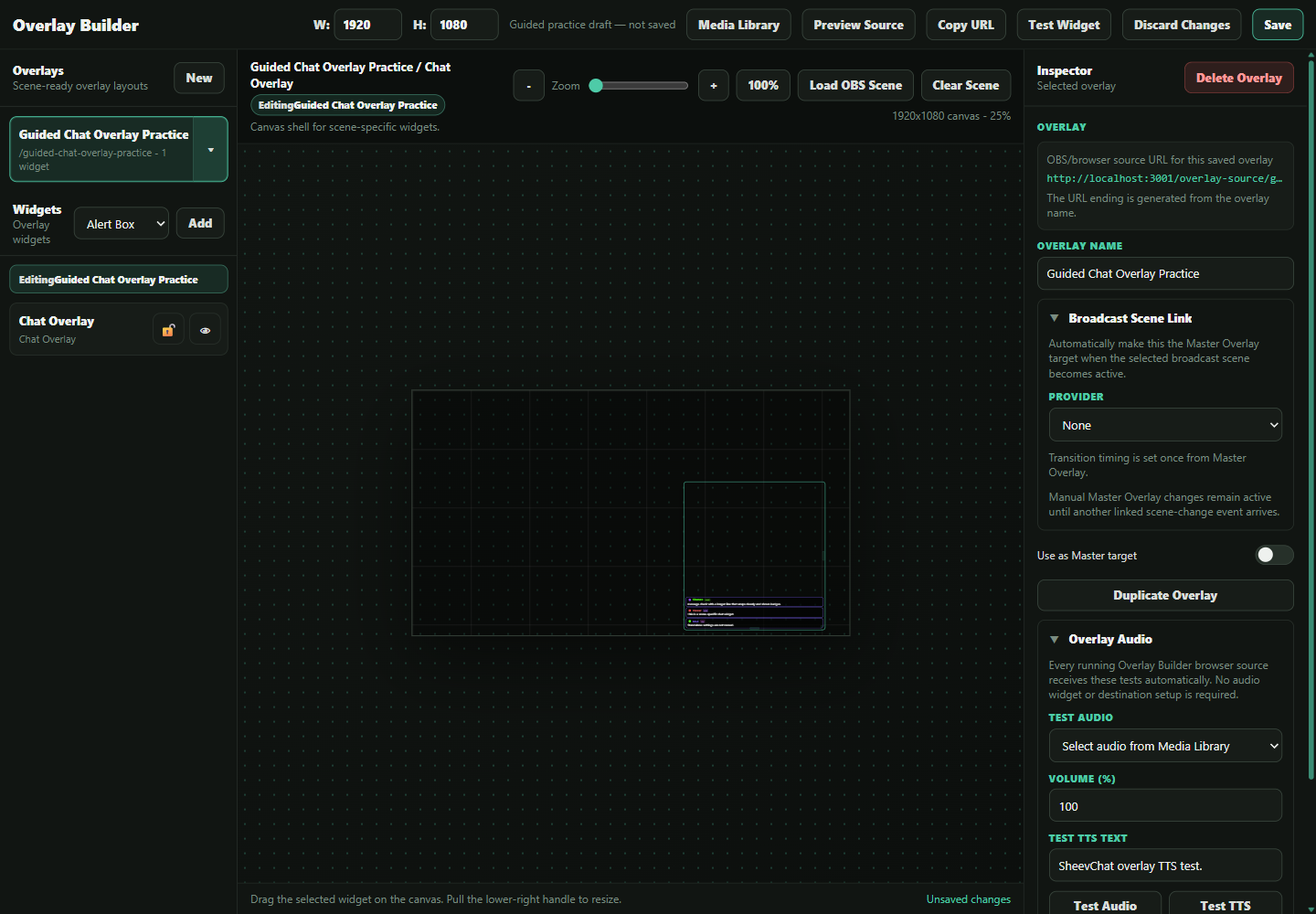
You can also link a saved overlay to one OBS Studio or Streamlabs Desktop scene. When that connected scene becomes active, SheevChat switches to the linked layout automatically. Keep OBS and Streamlabs links separate, and assign only the layout you want that scene to display.
Add and Arrange Widgets
- Select the overlay.
- Choose a widget and click Add.
- Drag the widget to position it.
- Drag its lower-right handle to resize it.
- Use the Inspector to change its content, layout, colors, fonts, and other settings.
- Click Save when finished.
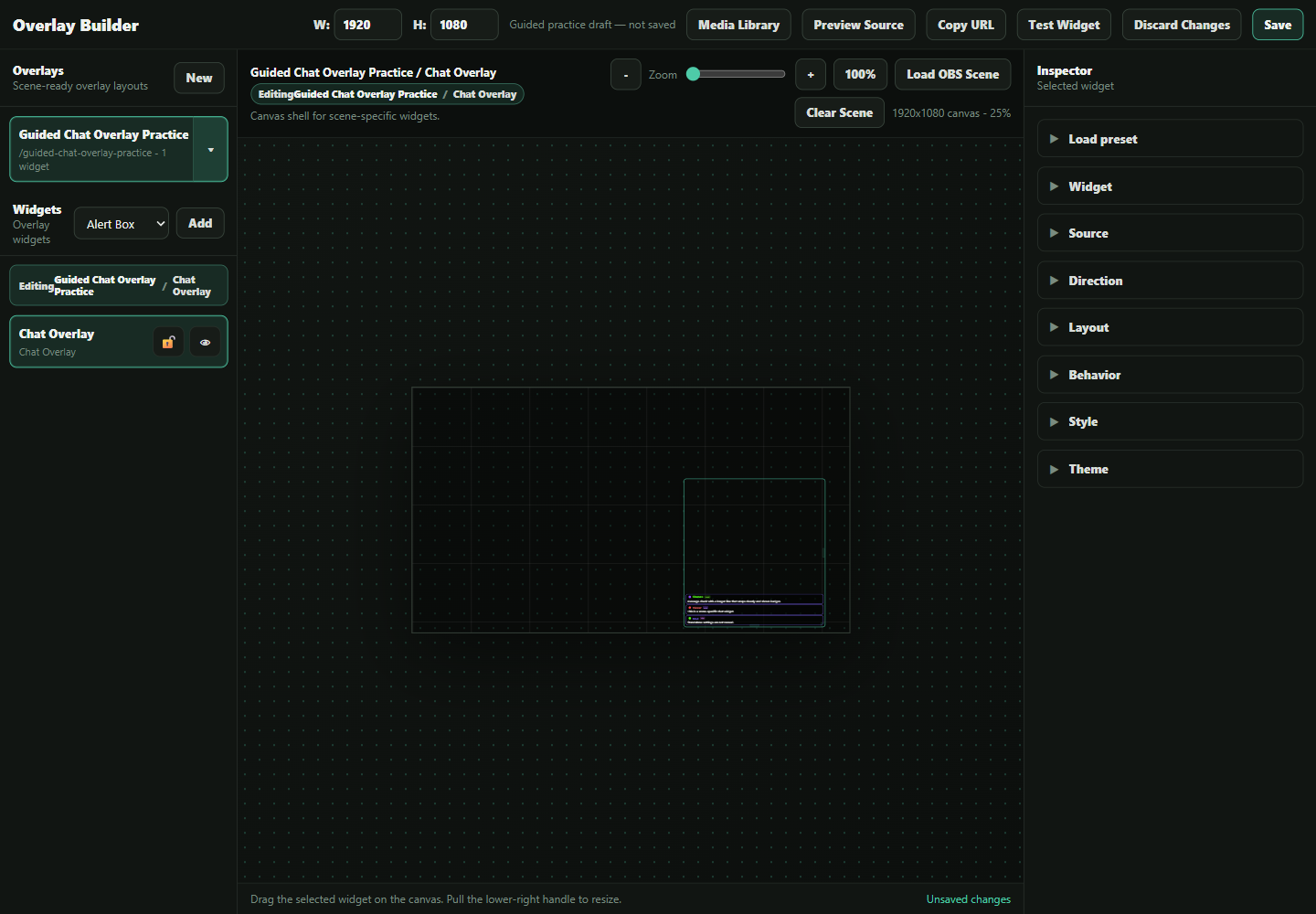
Available widgets include Alert Box, Chat, Giveaway, Credits, Clip, YouTube Media Queue, Spotify, Text, Media Library images, legacy Overlay Audio Receiver, and Marketplace Item.
Chat widgets display the original author and message context for supported Twitch and Kick replies. The context appears automatically when SheevChat receives reply metadata; it does not require a separate widget action.
Chat widgets can also show direct images and native Twitch GIPHY content. Their image-preview setting is independent from the main app, so decide deliberately whether shared images may appear on stream. See How To Show Image and GIF Previews in Chat.
Use Duplicate for a quick copy. SheevChat immediately selects the new copy so you can rename or edit it without accidentally changing the original. Hide a widget to preview the layout without it, or lock it to prevent accidental movement. Arrow keys can nudge the selected widget for precise placement.
If you leave with unsaved changes or choose to discard them, Overlay Builder uses an in-app confirmation. Cancel keeps the draft; confirming restores the last saved layout and its controls.
Inactive event-based widgets may remain hidden until they have something to display. Use Test Widget to preview the selected widget.
Add a Marketplace Widget
Install a widget package from Marketplace before adding it:
- Add a Marketplace Item widget.
- Select the installed package under Widget pack.
- Expand Widget Fields and configure the controls provided by its publisher.
- Use Sample Chat or Sample Alert when available.
- Check Package status and Runtime Status for dependencies, warnings, assets, logs, or errors.
Marketplace Items run in an isolated custom-widget lane and do not alter SheevChat's built-in widgets. Interactive packages may also support Overlay Widgets → Trigger Marketplace Widget in Action Builder.
See How To Find, Install, and Manage Marketplace Packages for installation and How To Import StreamElements Custom Widgets for local StreamElements exports.
Create an Image Carousel
- Add or select an Image widget.
- Set Display mode to Carousel.
- Select an image from the Media Library and click Add.
- Add at least one more image and arrange their order.
- Set Cycle every, the transition style, and transition time.
Carousel transitions include fade, directional slides, and none. Fit, corners, opacity, and shadow settings apply to every image in the carousel.
Animate Text
Select a Text widget and choose an animation such as Fade in, Pulse, or a directional slide. Set the animation time and enable Loop animation only when the effect should repeat continuously.
Position Against an OBS Scene
If OBS is connected, click Load OBS Scene to use a scene screenshot as a temporary canvas background. This makes it easier to place widgets around your camera, gameplay, and other sources.
The screenshot is only a positioning guide and is not included in the saved overlay. Click Clear Scene when finished.
Reuse Widget Themes
Widget themes save a widget's appearance and settings for reuse:
- Select a configured widget.
- Save it as a new theme.
- Select another compatible widget and load that theme.
Themes can be shared with standalone SheevChat sources where supported. Marketplace theme packs can also add compatible designs for built-in widgets such as Chat and Spotify or for a dependent Marketplace widget. Rename or delete your own reusable themes from the theme manager. A theme does not replace the widget's canvas position and size.
Widget themes are separate from the global SheevChat app theme. Changing General → Themes and Accessibility updates the Overlay Builder interface, but does not restyle the overlay content you designed.
Add the Overlay to OBS
- Click Preview Source and verify the overlay.
- Click Copy URL.
- In OBS, add a Browser Source and paste the URL.
- Set its width and height to match the Overlay Builder canvas.
Keep SheevChat open while the source is in use. If you only need one widget, you may still use its standalone source from Settings → Overlays.
To keep one OBS source while actions switch between complete saved overlays, see How To Use Master Overlay and OBS Scene Automations.
For scene-linked layouts, choose Fade when the broadcast scene uses a visible transition. Match the fade to the OBS or Streamlabs transition, then make the SheevChat duration slightly longer if the independent queues reveal a snap. Hard cuts normally work best with no fade.
Every saved Overlay Builder source can receive TTS and Media Library audio without adding a receiver widget. Select the overlay and use Test Audio or Test TTS, then confirm the Browser Source is allowed to output audio. Legacy receiver widgets remain compatible for older channel-routing setups. See How To Set Up Overlay Audio.
Common Problems
- Source is cropped or scaled: Match the OBS Browser Source dimensions to the canvas.
- Changes do not appear: Save the overlay, then refresh the OBS Browser Source.
- Widget cannot be moved: Unlock it first.
- Widget looks blank: Trigger or test it; inactive alerts, clips, Credits, and Giveaways may hide themselves.
- Media is missing: Confirm the item still exists in the Media Library.
- Marketplace Item says Needs attention: Install its required dependencies or review its local-import diagnostics in Marketplace.
- Marketplace widget is blank: Select a package, save the overlay, send a supported sample, and check Runtime Status.