⚡ Creating Automations
Automations react to stream events without you pressing a button or typing a command:
WHEN this happens → DO these actionsExample:
WHEN someone follows → DO send a thank-you messageSee Action Builder and Action Sequences for multi-action help.
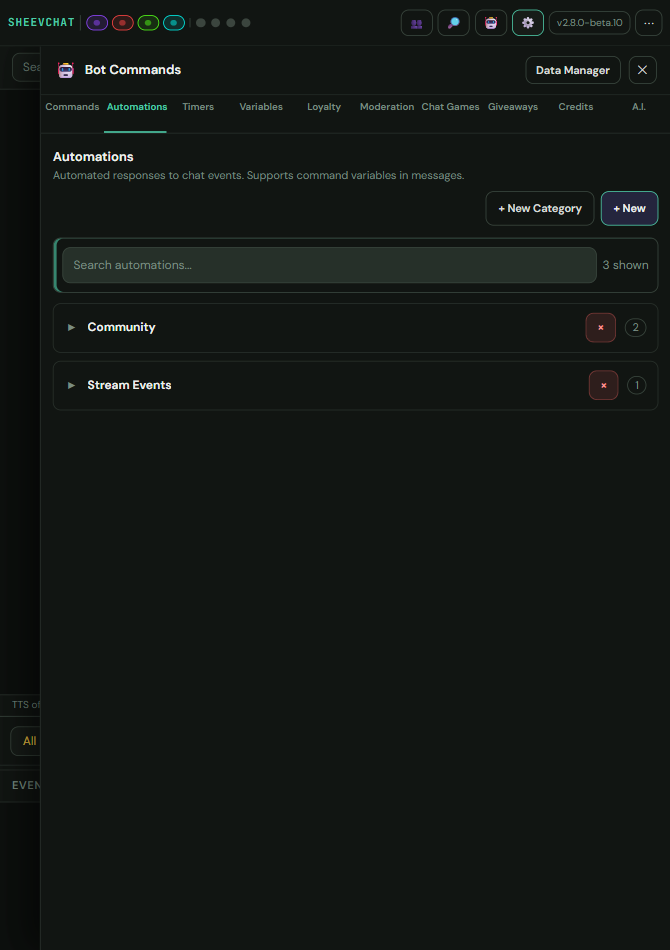
Creating an Automation
- Navigate to Bot Commands.
- Select Automations.
- Click New.
- Enter a clear Name, such as
New Follower Thanks. - Choose a Category, or leave it Uncategorized.
- Open When and choose a grouped Trigger event.
- Open Where and select All platforms or one supported platform.
- Complete any synchronized Trigger filters that appear.
- Set the Cooldown (seconds).
- Open Do and add at least one action.
- Click Create Automation.
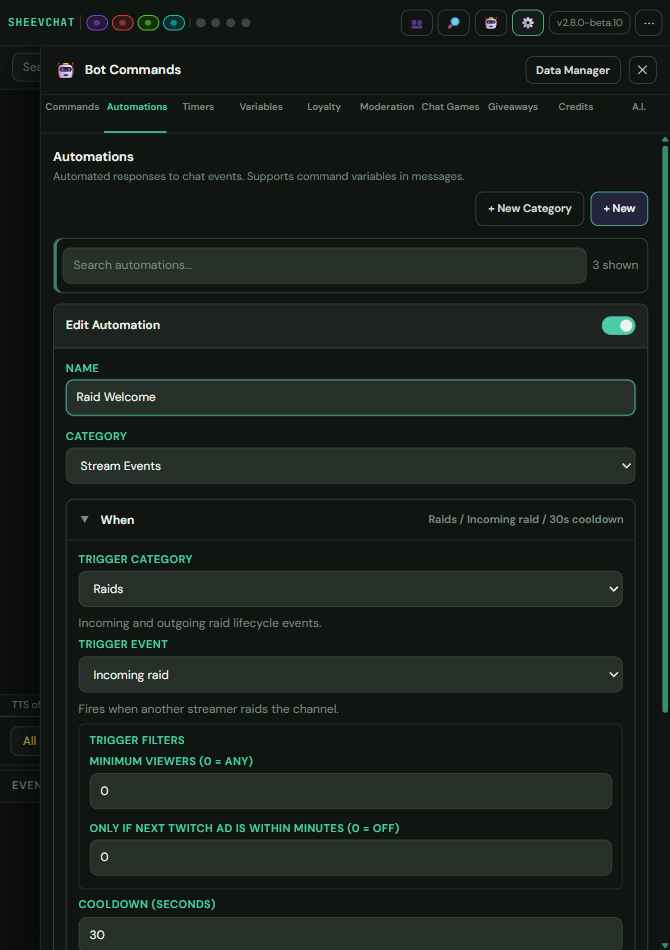
Use Duplicate when an existing Automation is a useful starting point. The copy is an independent draft that can use different triggers, filters, platforms, or actions.
Choosing a Trigger
The trigger is the event SheevChat watches for. Common triggers include:
- Follow, subscription, gift sub, Bits / KICKs, or raid
- First chat ever, this stream, or today
- Viewer birthday
- Channel Point redemption or a supported Kick reward event
- Ad break, Hype Train, poll, or prediction
- Super Chat
- Chat message contains or equals
- OBS Scene Change
- Imported App Event
- TikTok follows, shares, like milestones, questions, subscriptions, and finalized gifts
- Raid started for an accepted outgoing Twitch raid
The picker groups triggers under Chat / Viewers, Monetization, Raids, Platform Events, and OBS / Apps. Platform-specific events use a provider-first flow, and Where stays synchronized with the selected trigger.
Trigger Filters
Some triggers need more information before they can work.
Filters may ask for a Channel Point reward, usernames, a chat keyword, or minimum viewer authority.
For chat matching:
- Contains fires when the keyword appears anywhere in a message.
- Equals fires only when the entire message matches.
Keyword: hello
Contains: "hello everyone" matches
Equals:   only "hello" matches
Setting the Cooldown
The cooldown prevents an automation from firing too often.
0 = no limit between fires
30 = wait 30 seconds before it can fire again
Use a cooldown for chat keywords or other events that may happen repeatedly. Birthday and first-chat triggers already include their own event rules, so they often work well with 0.
Adding Actions
Under Actions:
- Choose an action category.
- Choose the action.
- Click Add action.
- Complete the action settings.
- Add more actions if needed.
Actions can send messages, award Loyalty, pause, control OBS Studio or Streamlabs Desktop, change the Master Overlay, trigger alerts, update User Counters, and run imported actions.
Actions can also create Twitch clips, control Windows audio, change the loyalty currency name, or snooze an upcoming Twitch ad. Use Action Builder search to locate them quickly.
For an OBS Scene Change trigger, select one program scene or leave the scene blank to match every change. It provides {scene} and {previousScene}. Pair it with Change Master Overlay to make a saved overlay follow the active OBS scene.
For an Imported App Event, choose an installed app and event stream. You can filter on a mapped value and use package-defined {event.key} variables in later actions. The stream must be enabled and allowed to route Automations under Marketplace → Installed Apps. See How To Create Automations from Imported App Events for the complete workflow.
Kick follows, subscriptions, gifted subscriptions, raids or hosts, and KICKs can use the same matching Automation triggers as their Twitch equivalents. Kick reward events also enter SheevChat's redemption workflow when the connected account supplies them. The exact triggers available in the editor still depend on the selected platform and connection.
TikTok event Automations can react to follows, shares, likes, questions, subscriptions, Super Fans, gifted subscriptions, and finalized gifts. They expose event-specific identity, gift, diamond, count, room, viewer, like, and goal variables. See How To Create TikTok Event Automations.
Use Raid started for an outgoing Twitch raid after Twitch accepts it. The trigger runs once and supplies target and viewer information, making it suitable for a final message or Credits → Roll Credits action before leaving.
Incoming Raid can optionally require that a fresh upcoming Twitch ad falls within a configured 0–180 minute window. Set 0 to disable this condition. Pair it with Snooze upcoming Twitch ad when an arriving raid should not be interrupted by an imminent ad. Missing, stale, errored, or already-started schedules do not satisfy an enabled window.
Streamlabs Desktop Automations can respond to scene, stream, recording, replay-buffer, source-visibility, and source-mute changes after its connection and catalog are ready.
For reusable recipes, see How To Connect Channel Point Rewards to Actions, How To Create a Timed Camera Redeem, and How To Pause Music During Stream Events.
For a viewer-specific first-message audio recipe, see How To Create Walk-On Sounds.
Using Event Variables
The editor shows variables supplied by the trigger. Use Insert Variable to add them to supported fields.
Example follower message:
Thank you for the follow, {user}! 💜A raid may provide {viewers}, while a birthday provides {birthday} and {agemessage}.
If an action displays a Needs warning, the selected trigger does not provide information that action requires.
Sending Messages to the Right Platform
For most automations, leave Send to set to Same platform as event. This replies in the chat where the event happened.
Use All platforms only when you intentionally want the message sent to every connected chat.
TikTok is explicitly opt-in. Its messages use the managed browser queue and are skipped when they contain links. Existing all-platform Automations do not silently gain TikTok delivery.
Testing an Automation
- Save the automation.
- Open Tests from the SheevChat header.
- Simulate the matching event.
- Confirm the automation fires once.
- Check the action order, variables, and destination platform.
Common Problems
- Nothing happens: Confirm the automation is enabled and saved.
- Wrong event: Check the selected trigger and filters.
- Fires too often: Increase the cooldown.
- Does not fire again: Wait for the cooldown or check the trigger's once-per-session rule.
- Variable appears as text: That trigger may not provide it.
- Message goes to the wrong chat: Check Platform and Send to.
- External action fails: Confirm OBS Studio, Streamlabs Desktop, or the Marketplace app is connected for that action family.