How To Create Walk-On Sounds
A walk-on sound plays when a specific returning viewer sends their first message of the stream.
Add the Sound
- Open the Media Library.
- Import the viewer's audio file.
- Preview it and confirm its volume and length are stream-safe.
- Keep an Overlay Builder Browser Source active in OBS or Streamlabs with audio enabled.
Global overlay audio does not require a receiver widget. Use Test Audio in Overlay Builder before building the Automation.
Create the Trigger
- Open Bot Commands → Automations and click New.
- Name it after the viewer, such as
Alex Walk-On. - Under When, choose First chat this stream (Welcome Back).
- In its trigger filters, enter that viewer's username.
- Leave the cooldown at
0; Welcome Back already fires once for that viewer during the stream session.
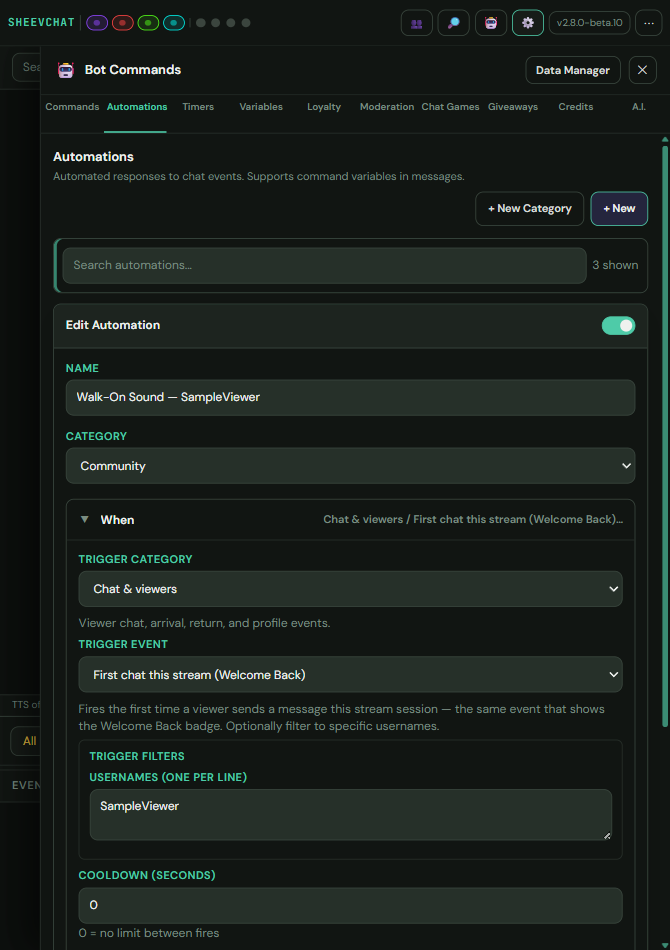
- Under Where, select the intended platform.
Use that platform's canonical username rather than a changeable display nickname. Create a separate Automation for each person who needs a different sound.
Add the Audio Action
- Under Do, add Send to Overlay → Play Audio Payload.
- Select the Media Library audio and set its volume.
- Save and enable the Automation.
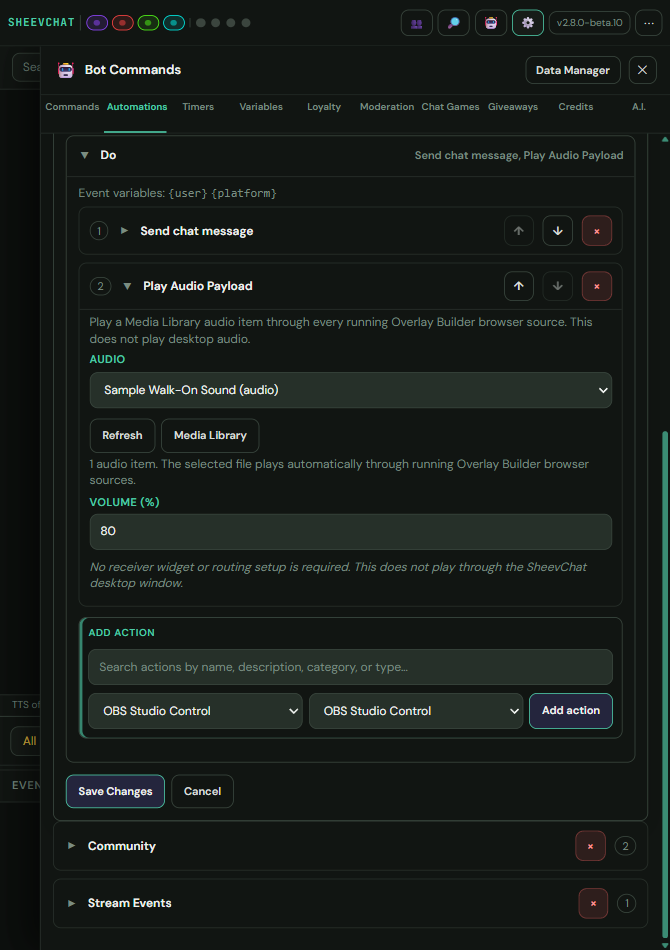
Add a Welcome Message — Optional
Add Send chat message before or after the audio action:
Welcome back, {user}!Keep the message on Same platform as event. Action order controls when it is queued relative to the audio payload.
Understand the Trigger
Welcome Back is for a known returning viewer's first message of the current stream. A viewer's first-ever chat uses the separate First Chat event and does not run the Welcome Back trigger.
The sound is chat-triggered: merely joining or lurking without sending a message does not play it.
Test Safely
Use a temporary test username or the Automation test tools to confirm the filter, audio file, volume, and overlay playback. A real once-per-stream test may require a fresh stream session before the same viewer can trigger it again.
Common Problems
- Every viewer triggers the sound: Add the intended username filter under Where.
- The person chats but nothing plays: Confirm they are a returning viewer, their canonical username matches, and the Automation is enabled for that platform.
- The sound plays in tests but not OBS: Keep an Overlay Builder Browser Source active and enable its audio.
- It plays only once: That is expected; Welcome Back fires once per viewer per stream session.
- A new viewer does not trigger it: First-ever chat and Welcome Back are separate events.
For general greeting behavior, see Welcome Back Message and How To Set Up Overlay Audio.