How To Use SheevPad with Stream Deck
The separate SheevChat Stream Deck plugin maps saved SheevPad action sequences to ordinary Stream Deck keys. Build and test the sequence in SheevChat first.
Prepare SheevPad
- Create and save the SheevPad button you want to run.
- Give it a clear name, group, color, and optional Media Library image.
- Test the sequence inside SheevChat.
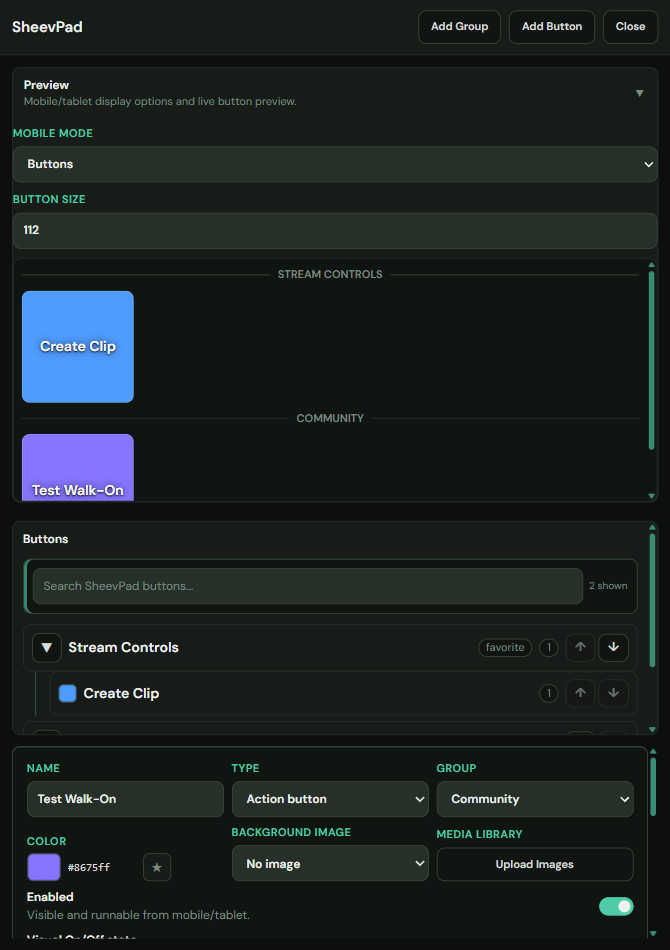
Navigation-only buttons are intentionally excluded. Renaming or editing a mapped button keeps its mapping because Stream Deck follows the saved button ID. Deleting and recreating it produces a new ID that must be selected again.
Install and Map the Plugin
- Install the separately distributed SheevChat Stream Deck plugin. It requires Stream Deck 6.9 or newer.
- Keep SheevChat and Stream Deck on the same computer.
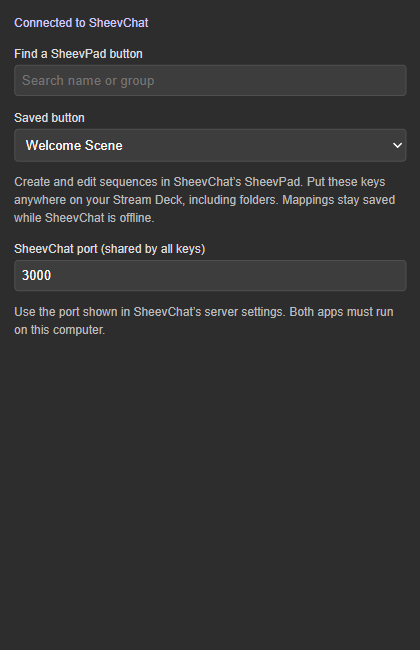
- Drag SheevChat → SheevChat Action onto a key.
- Select the key and search for the saved SheevPad button by name or group.
- If SheevChat uses a non-default port, enter that same port in the plugin settings.
Understand Key Behavior
- A successful acknowledgment means SheevPad accepted the sequence; it does not prove every external service completed its effect.
- Presses are not queued or automatically retried after an uncertain connection failure.
- Offline keys retain their last cached label, color, and artwork.
- Custom Stream Deck titles or images override SheevPad appearance.
- Folders and Stream Deck Mobile use the same saved mapping behavior.
Common Problems
- The key says Setup: Open its property inspector and select a saved SheevPad button.
- SheevChat is offline: Start SheevChat; the plugin reconnects without replaying the missed press.
- The wrong port is shown: Match the plugin's shared port to SheevChat's configured port.
- Artwork does not update: Clear any custom Stream Deck image and reselect the button.