How To Create and Use Stream Info Presets
Stream Info presets keep reusable titles, categories, and destination platforms together for Commands, Automations, Timers, and SheevPad.
Create a Preset
- Open Data Manager → Preset.
- Click New preset.
- Give it a clear name.
- Select its Twitch, YouTube, and/or Kick destinations.
- Enter the title and categories that should change.
- Save the preset.
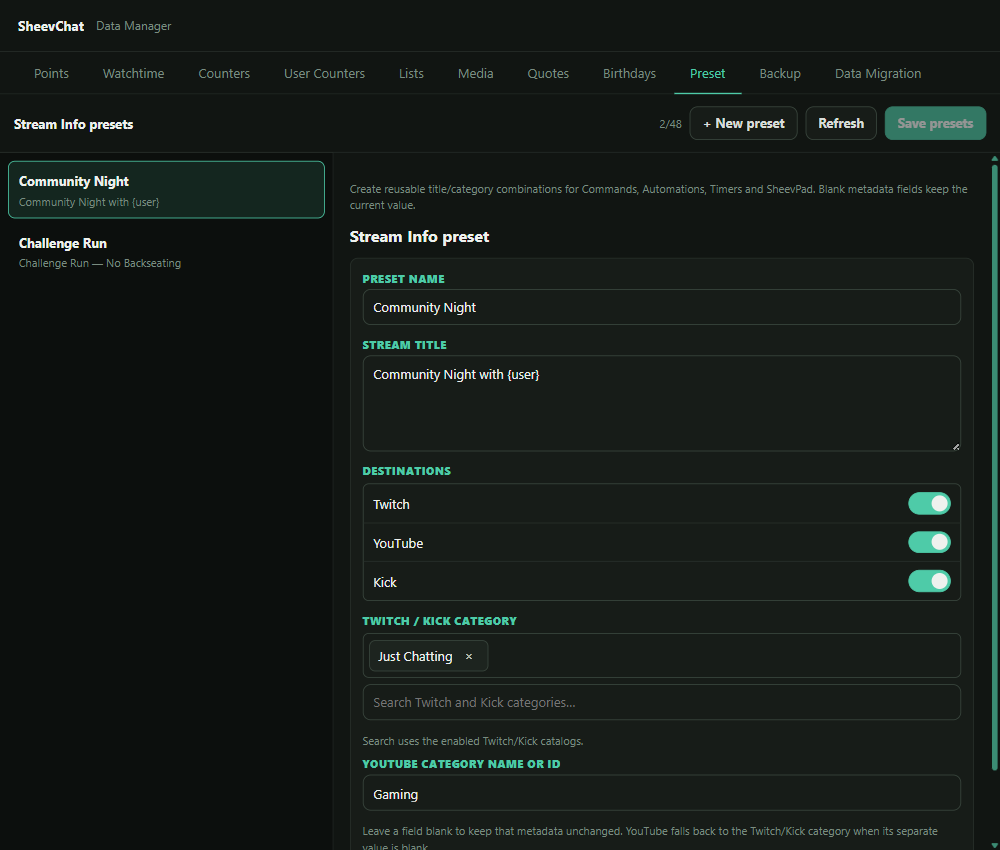
Blank metadata fields keep the current value. TikTok does not expose supported title/category update APIs and is not a preset destination.
Apply a Preset from Action Builder
- Add Stream Info → Apply Stream Info preset.
- Choose Specific preset and select one saved preset, or choose Random from selected presets and build a pool.
- Save and test the sequence while offline or on a test stream when possible.
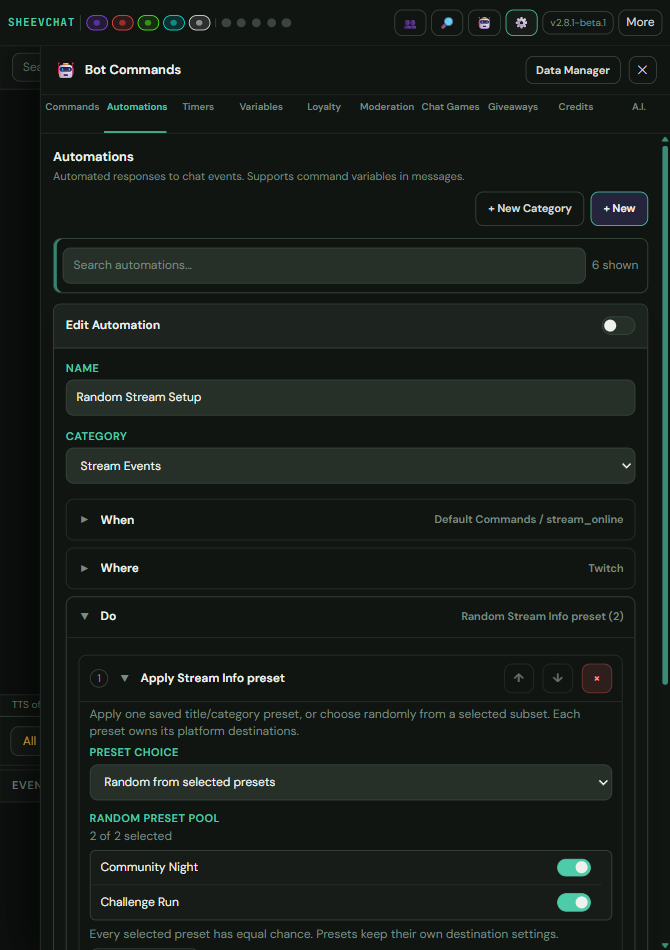
Titles may contain supported variables and RNG lists. Each selected preset still owns its platform destinations.
Manage Presets
Duplicate a preset before making a variant. Renaming or editing a saved preset updates future runs that reference its stable identity. Deleting a preset leaves sequences that reference it incomplete until another preset is selected.
Common Problems
- The action has no choices: Create and save at least one preset first.
- One platform does not change: Add it to the preset's destinations and confirm that platform is connected.
- A title variable is printed literally: Use a variable available to that trigger or sequence.
- TikTok is missing: TikTok title/category updates are not supported by this action.