How To Create Twitch Polls and Predictions
Twitch engagement actions can run from Commands, Automations, Timers, and SheevPad. They always target the connected Twitch broadcaster.
Create a Poll
- Open an Action Builder surface and add Twitch → Create Twitch Poll.
- Enter the question.
- Add between two and five distinct choices.
- Set the voting duration.
- Save and test the sequence.
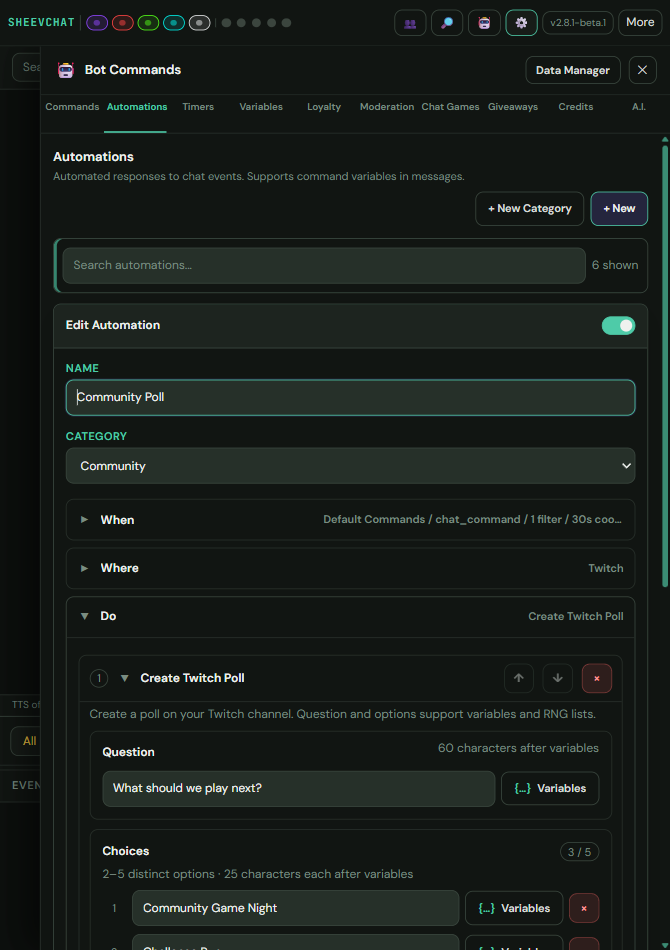
Questions and choices support variables and named RNG lists such as {list:poll-topics}. The resolved text must still fit Twitch's displayed limits.
Create a Prediction
Add Twitch → Create Twitch Prediction, then configure its question, outcomes, and entry duration. Predictions require two to ten distinct outcomes.
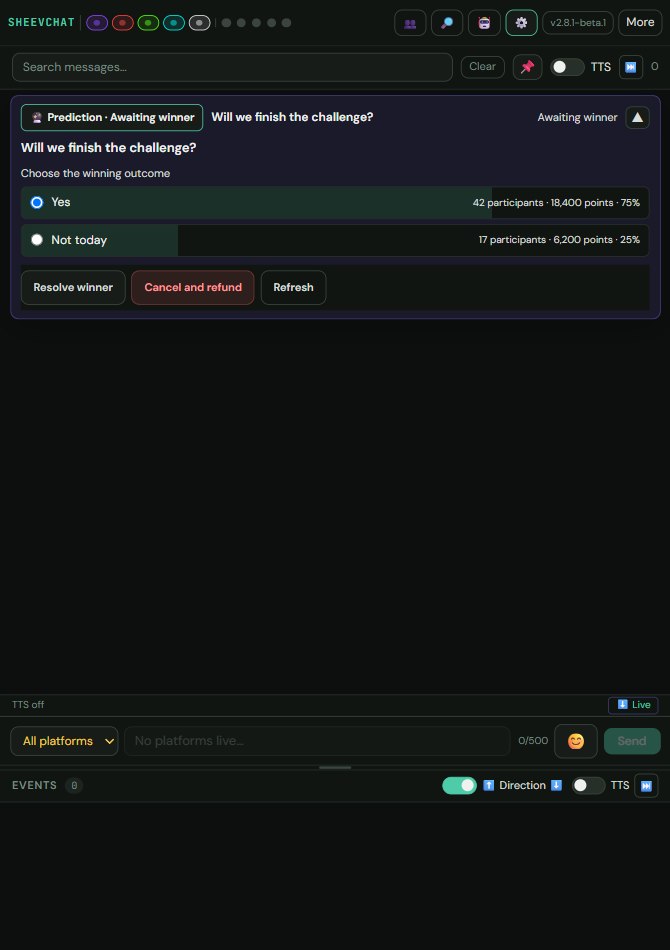
When entries close, use the shared pin section in SheevChat's main window to:
- lock entries early;
- choose the winning outcome; or
- cancel and refund the prediction.
Important Limits
- These actions require the connected Twitch broadcaster account and the required Twitch permissions.
- A non-Twitch Timer firing skips Twitch poll and prediction creation.
- Saving the action does not immediately create an event; it runs only when its Command, Automation, Timer, or SheevPad button executes.
Common Problems
- No poll or prediction appears: Reconnect the Twitch broadcaster and review its permissions.
- An option is rejected: Keep every resolved option distinct and within its character limit.
- A prediction remains unresolved: Select its winner or refund it from the pin section.
- A Timer works elsewhere but not for Twitch: Make Twitch an active Timer platform.